Python Figure Visualization
Scientific Figures for Research Papers
@seokhyun choung|January 2026
Figures are more than half of paper writing. Good figures elevate your research impact.
- Seeing is believing - figures are critical for visual communication
- Adopt an automation mindset with open-sourcing culture
- Origin/Excel: Intuitive but hard to automate, not suitable for LLM era
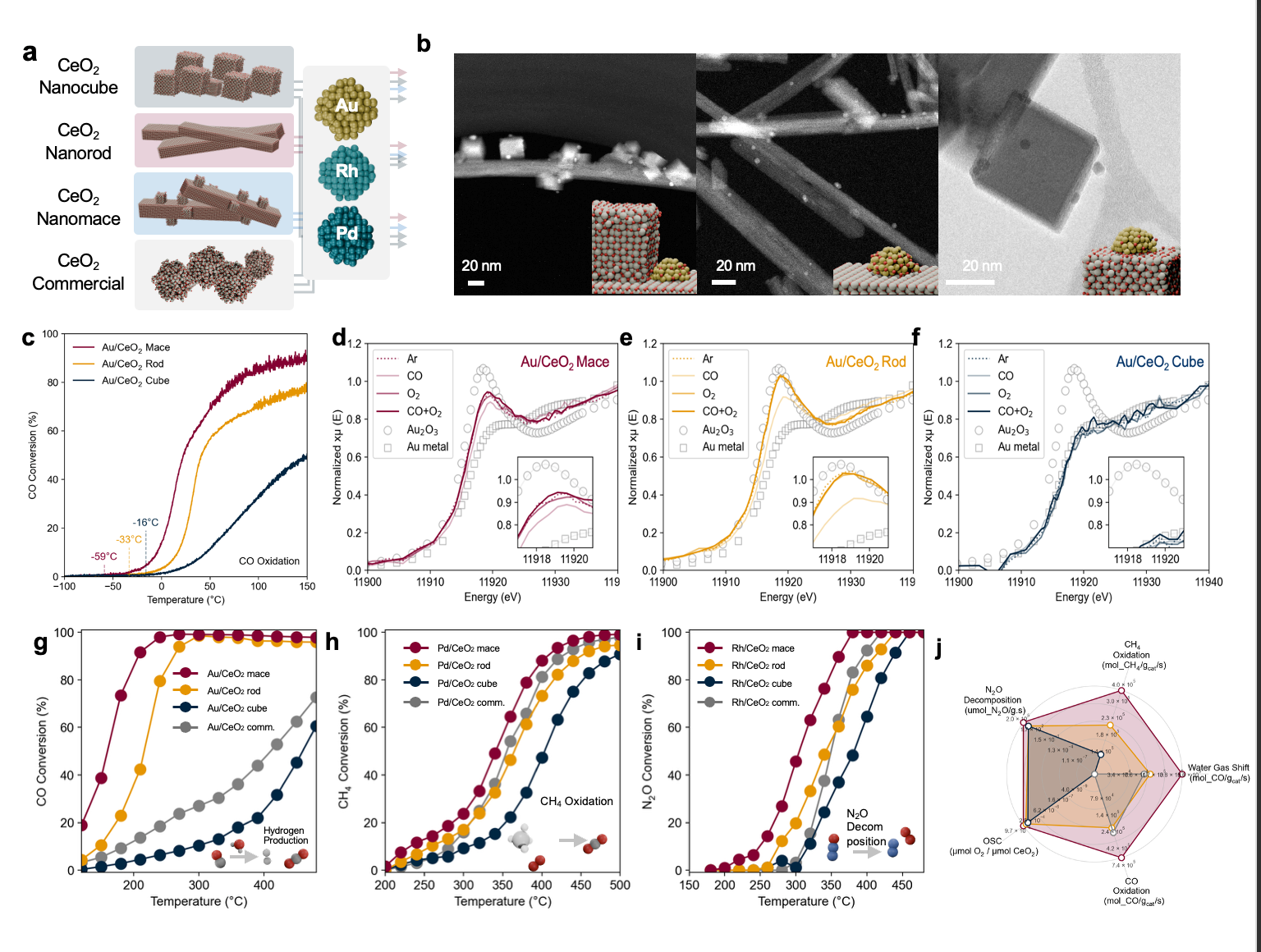
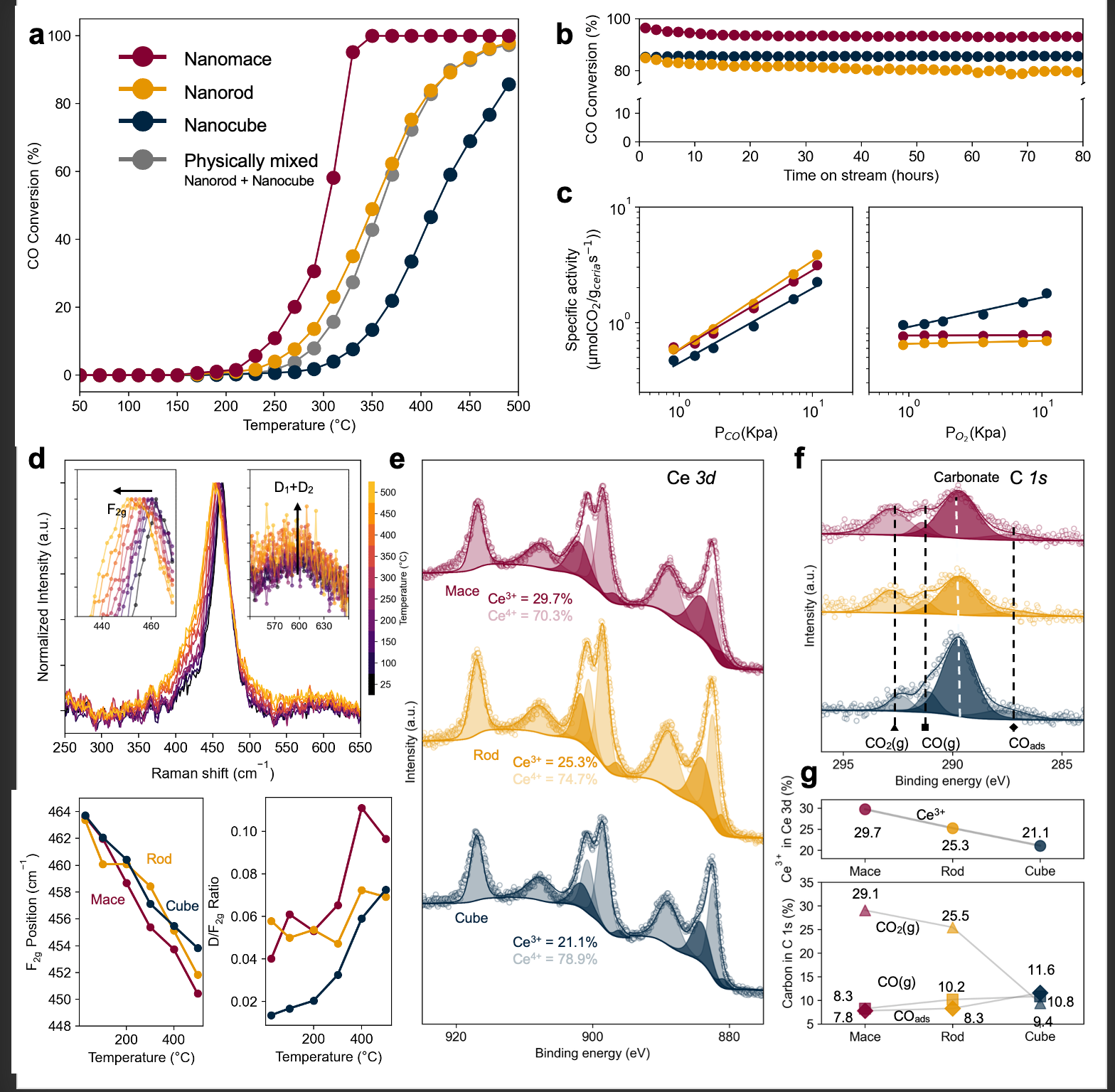
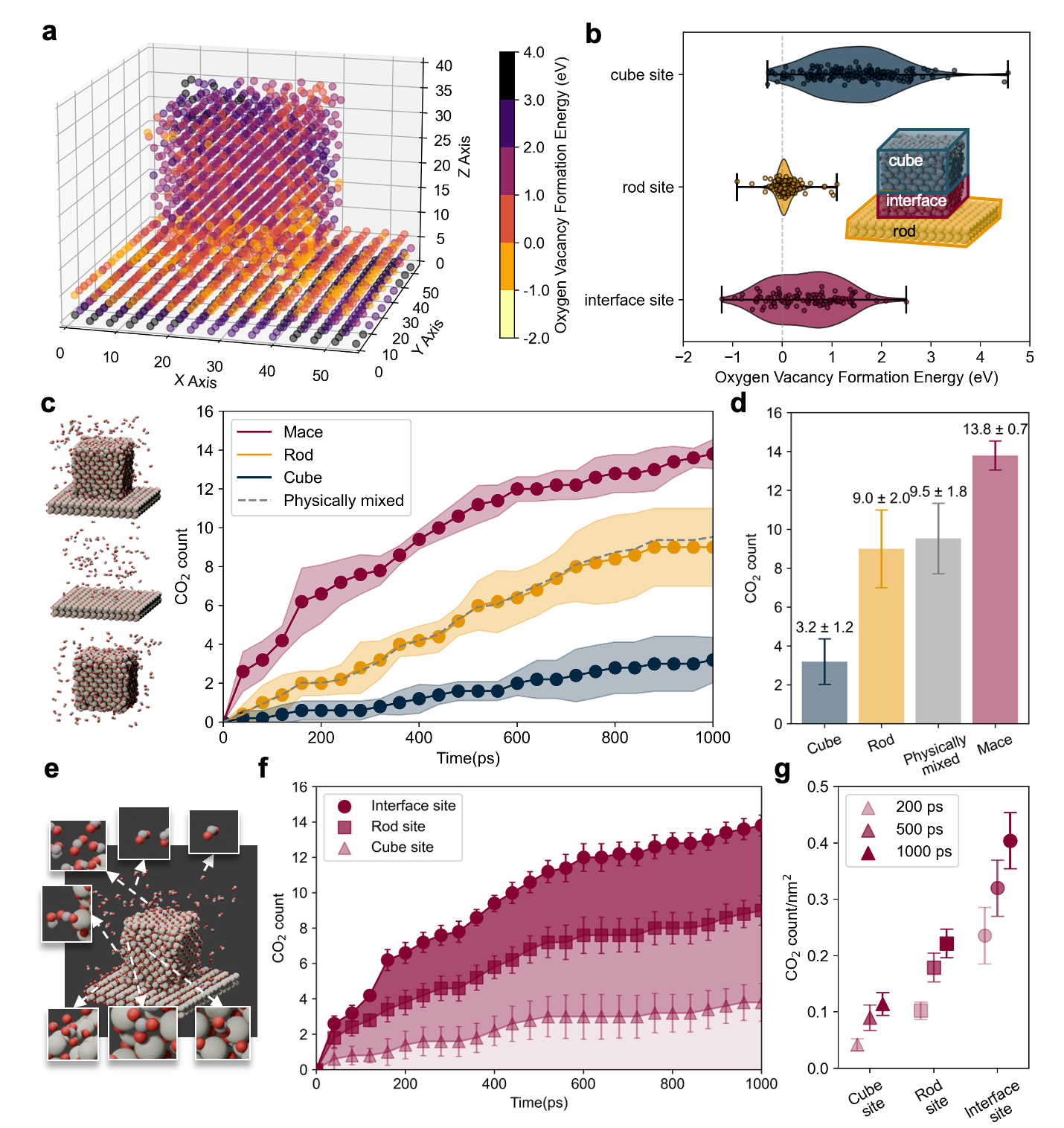
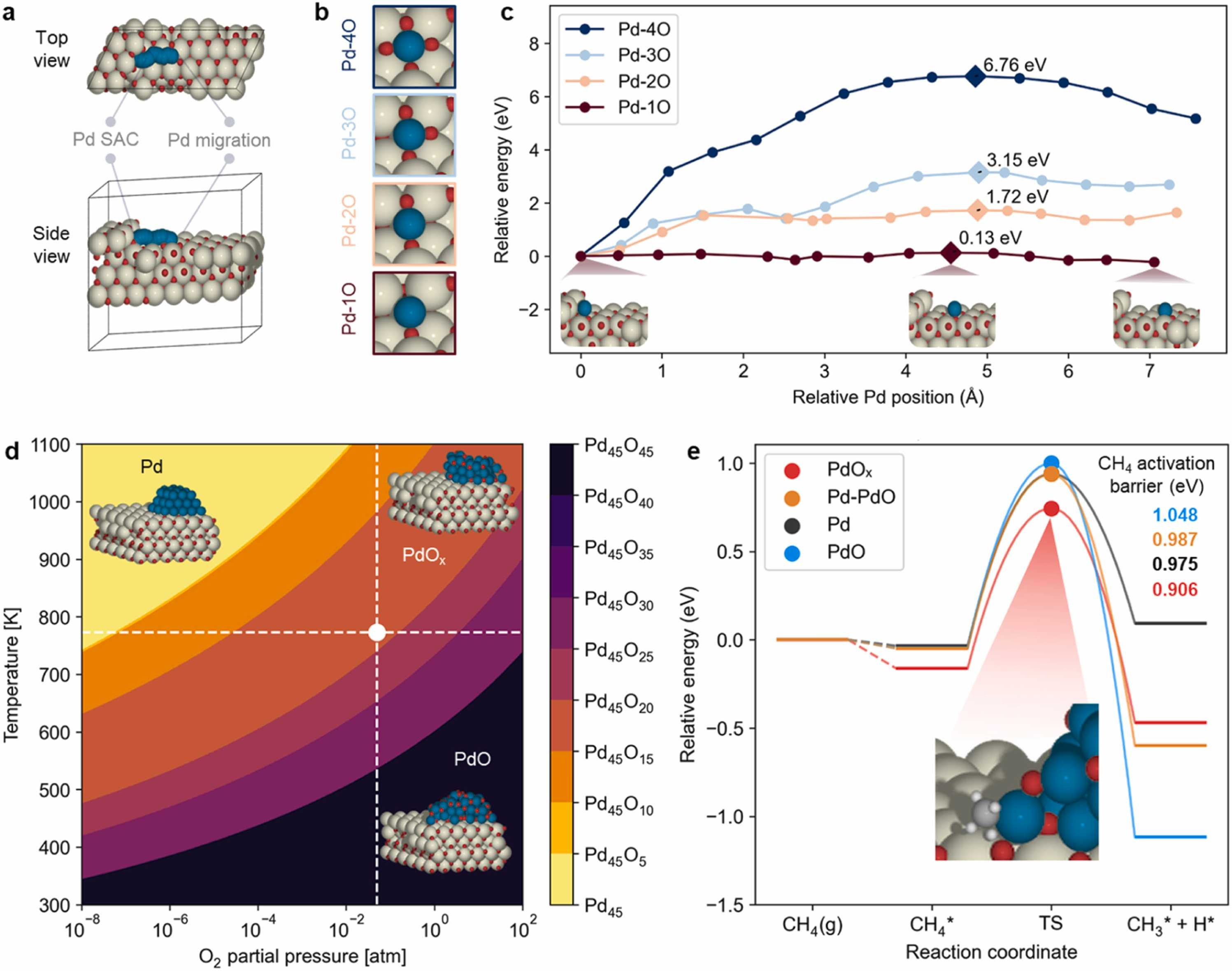
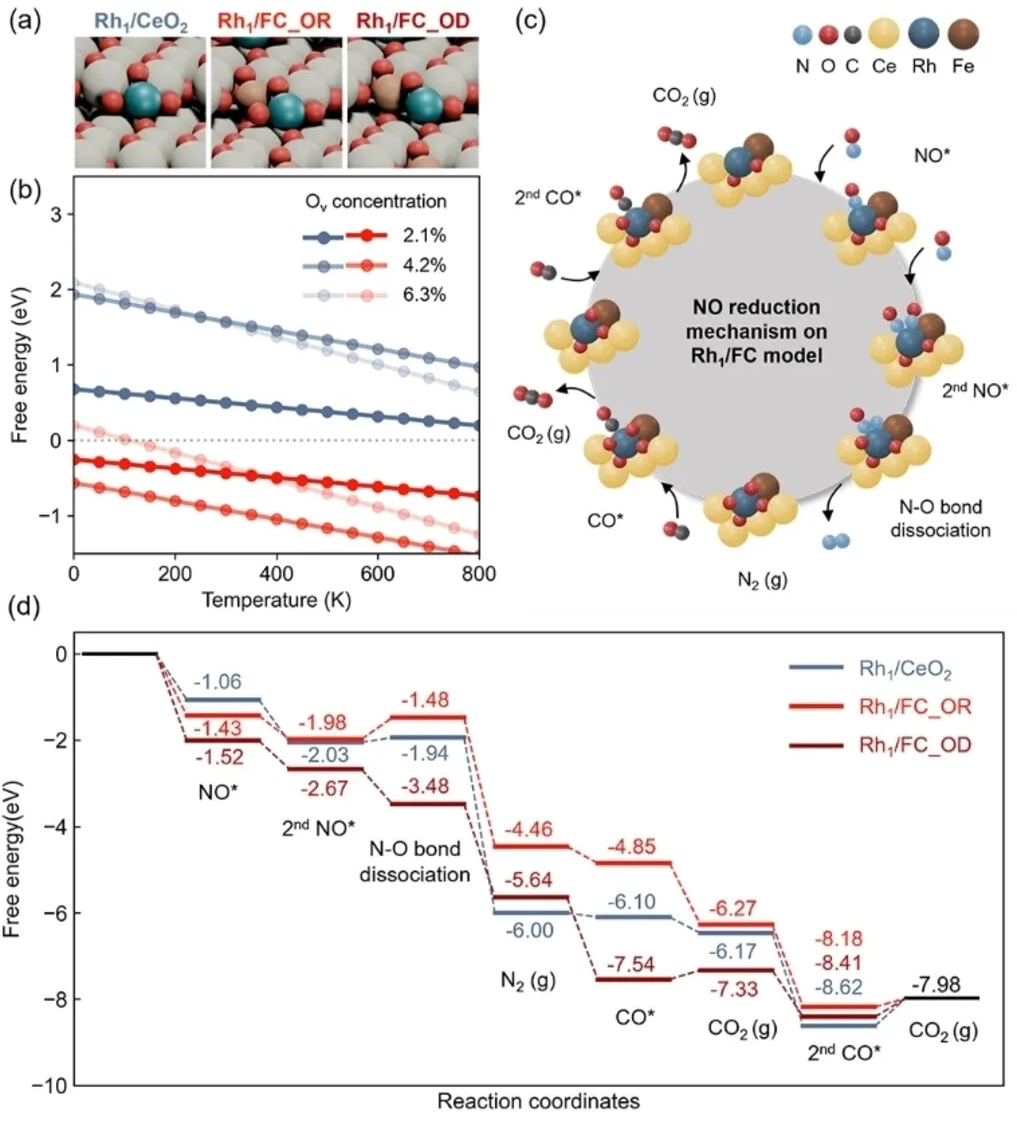
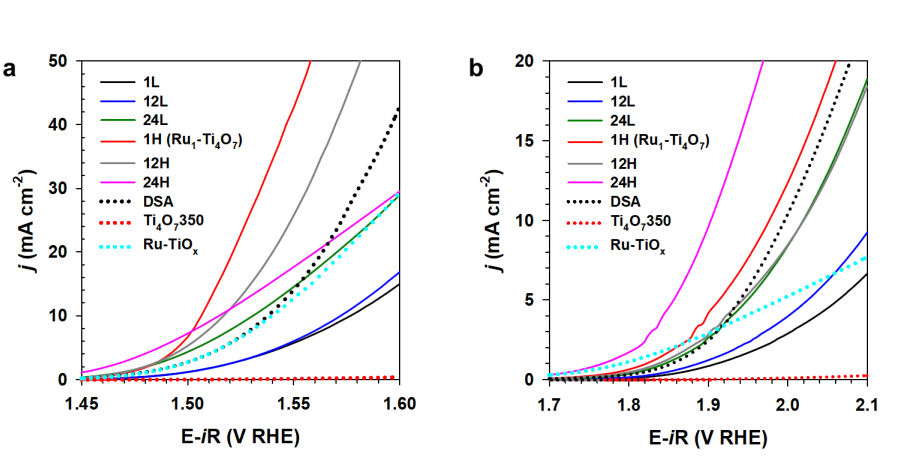
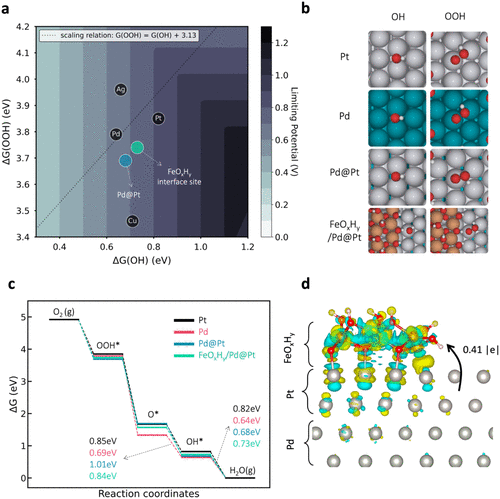
Complex figures combining multiple data types and visualizations
DFT calculations, MD simulations, and ML results
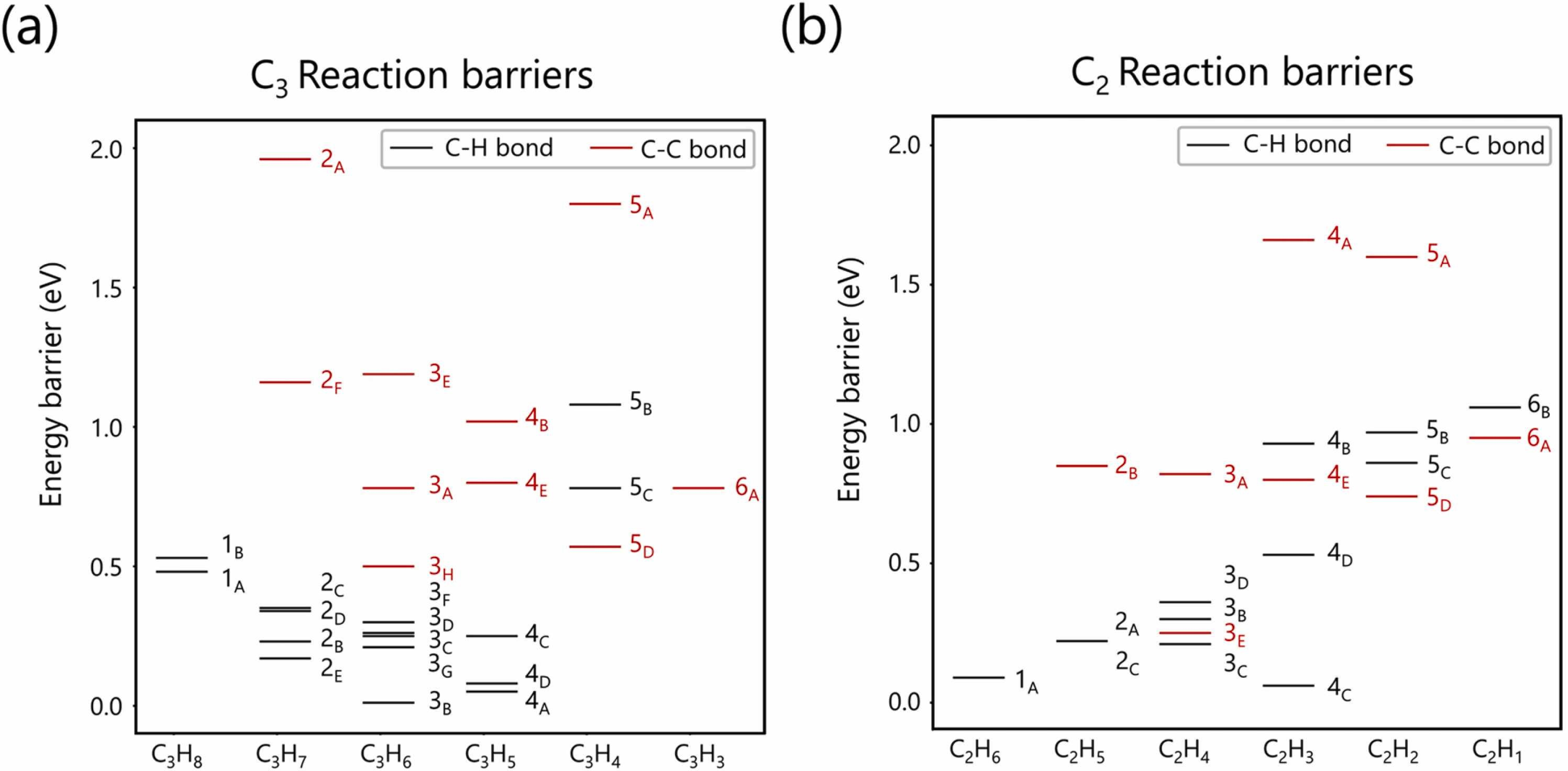
C-H/C-C bond breaking barriers
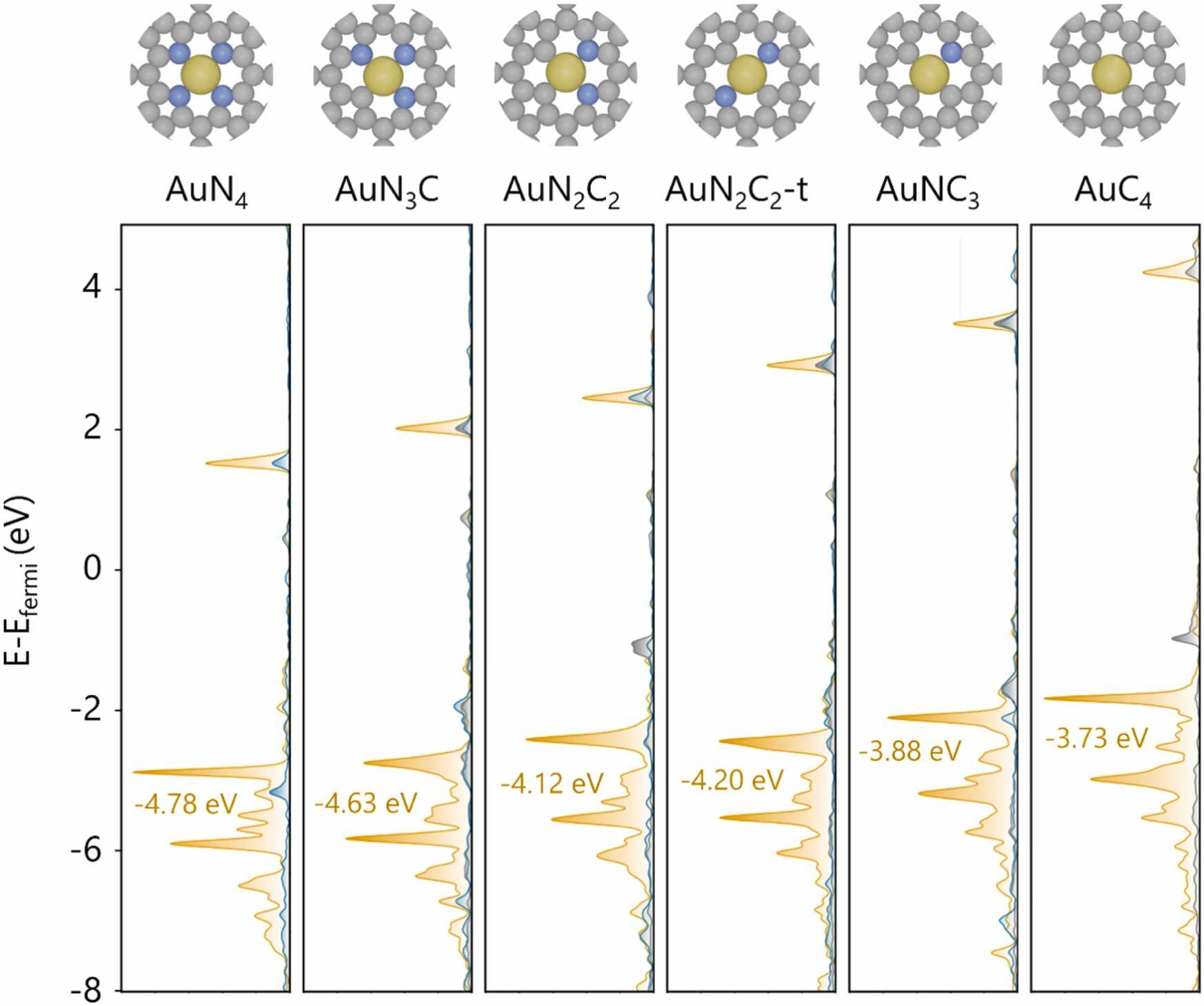
Density of States (DOS)
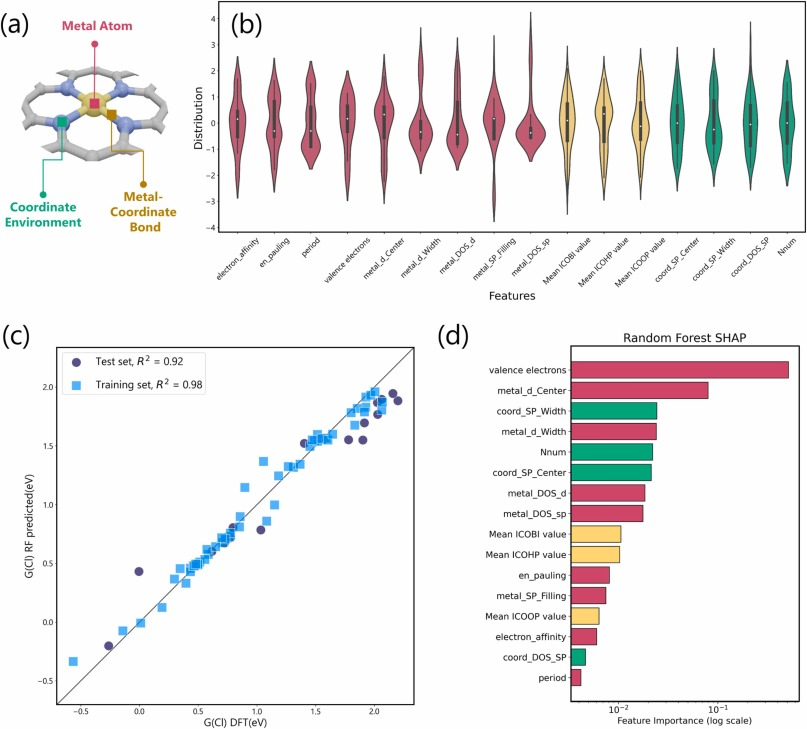
ML: Parity plot + Violin + SHAP
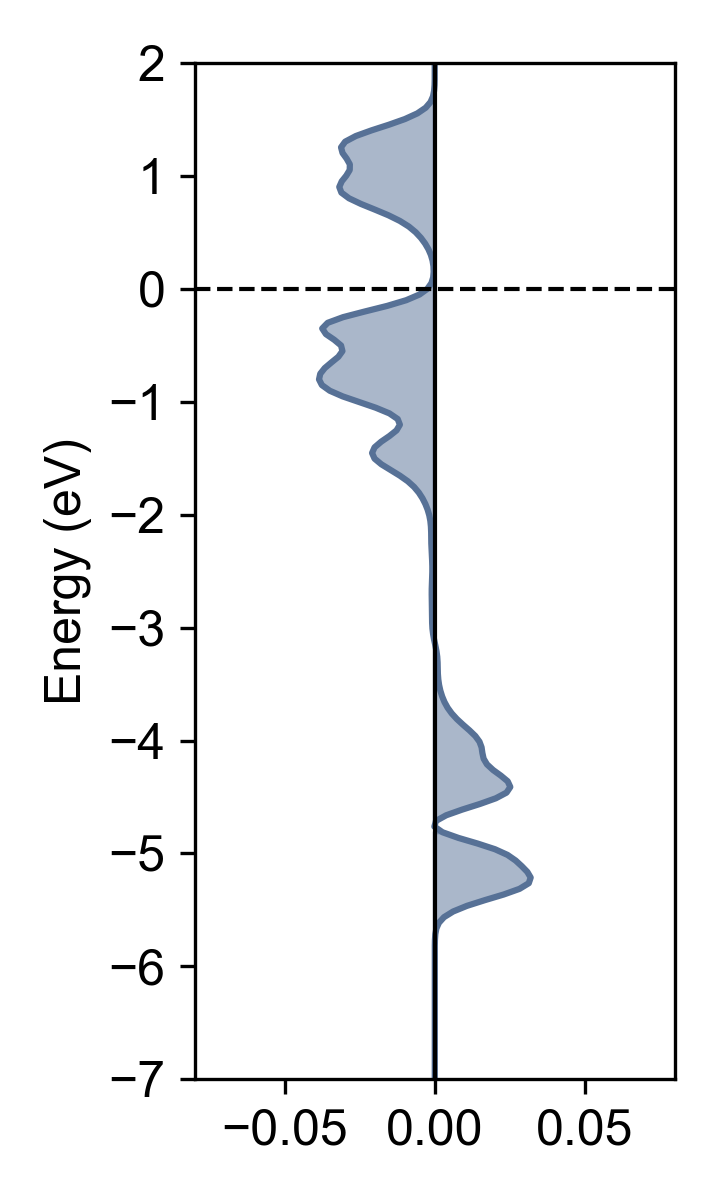
COHP bonding analysis
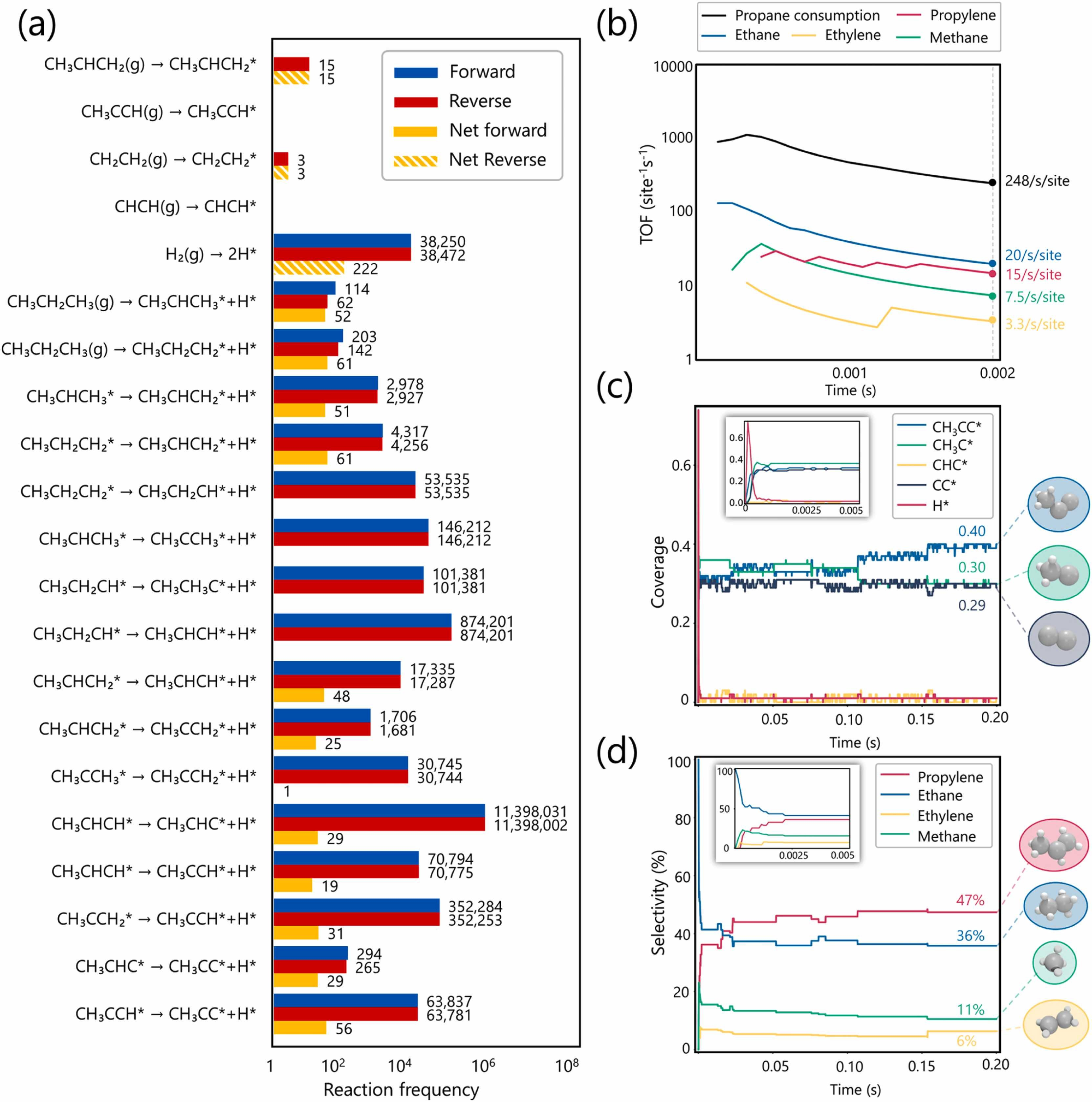
Microkinetic: TOF + Coverage + Selectivity
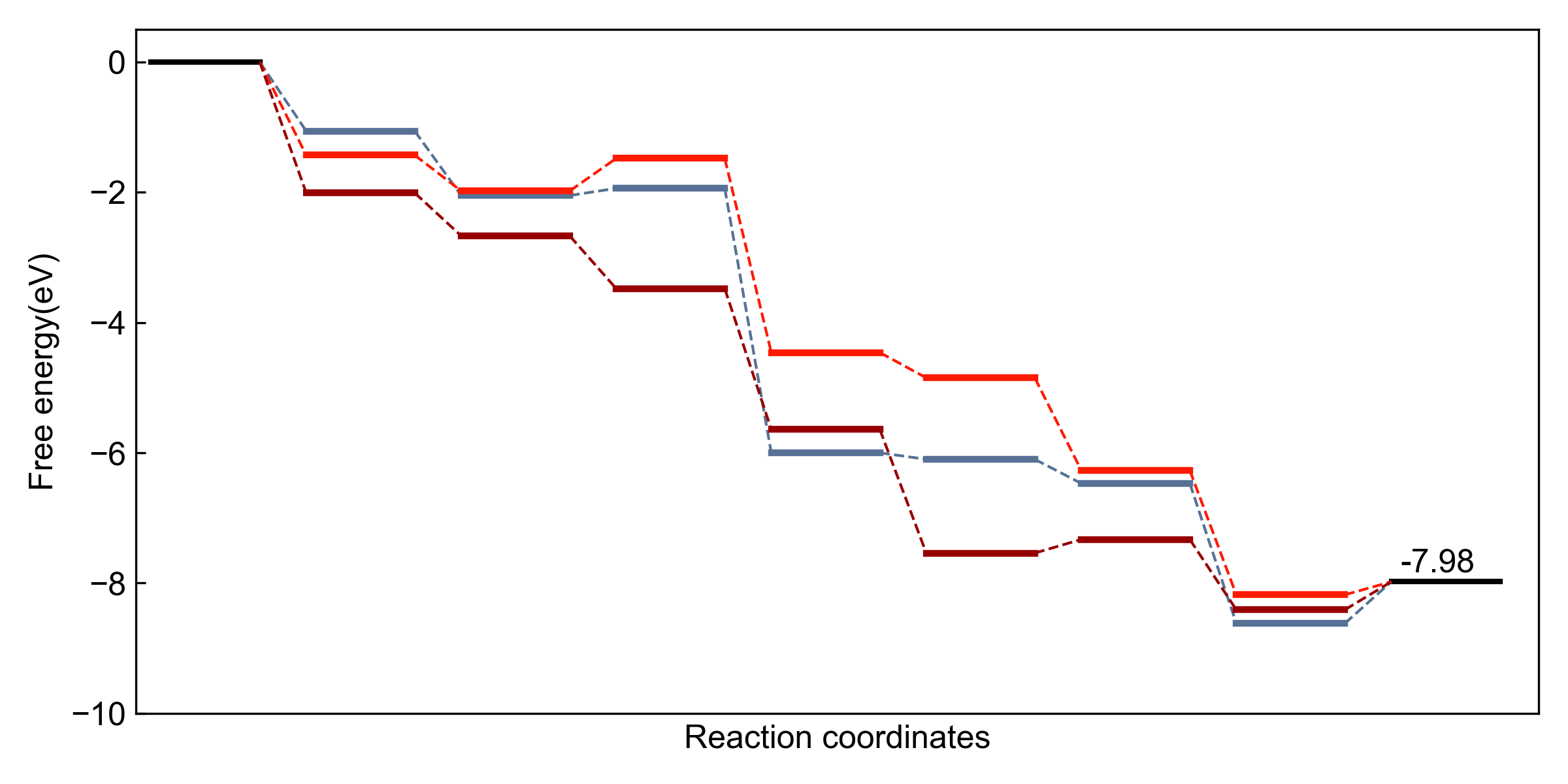
Reaction coordinate diagram
1Why Python?
Automation in the LLM Era
Why Python?
- Automation: if you do it twice, automate it
- LLM era enables full automation
- Code-based = reproducible & version-controlled
- Focus on research, not repetitive tasks
Good Figures Have...
- Aesthetic: color harmony, visual appeal
- Intelligence: clear research message
- Convention: follow field standards
- Principles: one color/shape = one meaning
->Python + LLM = Efficient, reproducible, beautiful figures
2Python Basics
Setup, Matplotlib, Data Handling
Conda Setup
# Create environment
conda create -n mpl python=3.9
conda activate mpl

# Install packages
conda install matplotlib pandas numpy
pip install ase  # optional
Basic Imports
import matplotlib.pyplot as plt
import numpy as np
import pandas as pd

# For custom fonts
import matplotlib.font_manager as fm
fig, ax Pattern (recommended)
fig, ax = plt.subplots(figsize=(8, 6))
ax.plot(x, y, color='blue', lw=2)

# Multiple subplots
fig, axes = plt.subplots(2, 3)
axes[0, 0].plot(x, y)
Plot Types
# Line plot
ax.plot(x, y, 'b-', label='data')

# Scatter plot
ax.scatter(x, y, s=50, alpha=0.7)

# Fill between
ax.fill_between(x, y1, y2, alpha=0.3)
Always use fig, ax pattern. Scatter for raw data, lines for continuous/processed data.
Formatting
# Labels and limits
ax.set_xlabel('Temperature (C)')
ax.set_ylabel('Conversion (%)')
ax.set_xlim(0, 100)
ax.set_ylim(0, 100)

# Legend
ax.legend(loc='upper right')
Saving
# Always use tight_layout first!
plt.tight_layout()

# Save with options
plt.savefig('fig.png', dpi=300,
            bbox_inches='tight')
plt.savefig('fig.svg')  # vector
SVG format best for publications (vector, scalable)
dpi=300 minimum for print quality
Reverse axis for XPS: ax.set_xlim(x.max(), x.min())
NumPy Arrays
# Vectorized operations (fast!)
data = np.array([1, 2, 3, 4, 5])
squared = data**2  # all at once

# Create arrays
x = np.linspace(0, 10, 100)
x = np.arange(0, 10, 0.1)
y = np.sin(x)
Pandas for Excel/CSV
df = pd.read_excel('data.xlsx',
                   sheet_name='Sheet1')

# Select columns
x = df.iloc[:, 0]  # by position
y = df['col_name']  # by name

# Clean data
df = df.dropna()  # remove NaN
Use .values to convert pandas Series to numpy array for plotting.
3LLM Acceleration
AI-Powered Figure Generation
# System prompt for consistent figures
fs = 12  # font size
font_props = fm.FontProperties(family='Arial', size=fs)
colors = ['#77AEB3', '#E5885D', '#C7C4B5', '#A1C2DE', '#B4944B']
os.makedirs('./output', exist_ok=True)
def format_axis(ax, xlabel, ylabel):
    ax.set_xlabel(xlabel, fontproperties=font_props)
    ax.set_ylabel(ylabel, fontproperties=font_props)

def save_plot(filename):
    plt.tight_layout()
    plt.savefig(f'./output/{filename}', dpi=300, bbox_inches='tight')

# Complete example
x = np.linspace(0, 10, 100)
fig, ax = plt.subplots(figsize=(8, 6))
ax.plot(x, np.sin(x), 'b-', lw=2, label='sin(x)')
ax.plot(x, np.cos(x), 'r--', lw=2, label='cos(x)')
ax.fill_between(x, np.sin(x), np.cos(x), where=(np.sin(x)>np.cos(x)), alpha=0.3)
format_axis(ax, 'X values', 'Y values')
ax.legend()
save_plot('trig.svg')
1Use fig, ax pattern
2Set labels with units
3tight_layout() before save
4bbox_inches='tight'
5Use alpha for layers
6SVG for publications
1NumPy + Pandas
Arrays for speed, DataFrames for Excel/CSV
2Matplotlib
fig/ax pattern, consistent styling, proper saving
3LLM Tools
Cursor for fine-tuning, Claude Code for automation
Beautiful Figures Tell Stories
Automate, Iterate, Perfect
Good figures take practice
Automation saves time for creativity
LLMs are your coding partners
Keep coding. Keep visualizing. Keep publishing.